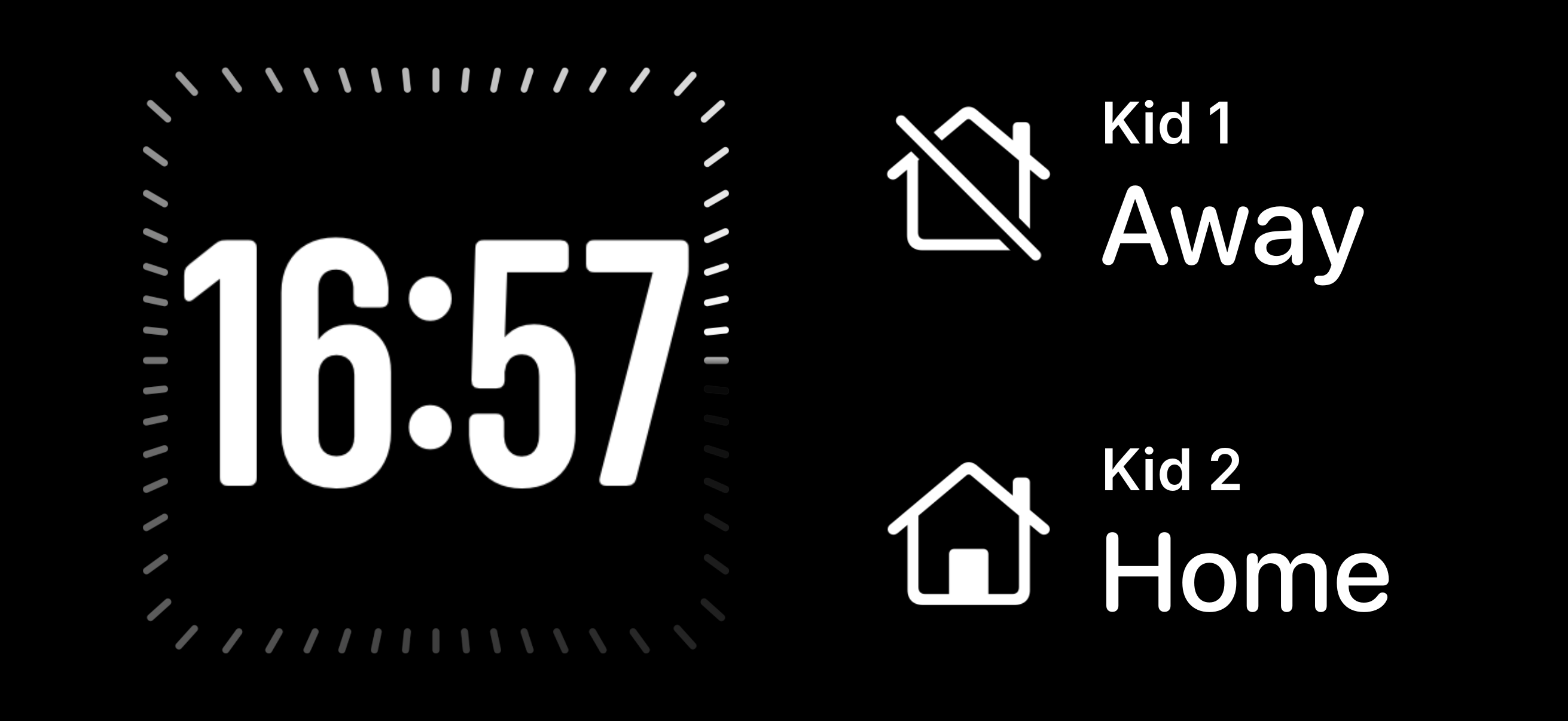
Is the kid home yet?
Every parent of a teenager knows the late-night ritual: lying awake, half-listening for the front door, wondering whether they're already home and you just didn't hear them. I wanted a quieter answer to that question: a glance at my phone on the nightstand that says Home or Away, without installing anything extra on their phone.
The idea is simple. When my kid's iPhone is on our Wi-Fi, they're home. I already run UniFi gear and Home Assistant, so all the pieces were there; they just needed connecting. Here's how I did it, including the mistakes I made along the way.
The setup has four parts:
- UniFi OS Server on a Linux box, managing the network and knowing which devices are connected
- Home Assistant turning "this iPhone is connected" into a presence state
- Scriptable app creating a readable widget with stateful icons
- An iPhone StandBy widget showing that state on my nightstand
Part 1: Installing UniFi OS Server permalink
UniFi OS Server is Ubiquiti's self-hosted replacement for the old UniFi Network Application. It runs as a Podman container, and the install is mostly painless:
sudo apt-get update && sudo apt-get install podman slirp4netns
curl -O <download-link-from-ui.com>
chmod +x <installer>
sudo ./<installer>
Grab the download link from the UniFi download page by right-clicking the Linux installer and copying the link address.
The official instructions say to run sudo <installer>. That fails with command not found, because without a path sudo looks for the file in your PATH, not in the current directory. Put ./ in front:
sudo ./8b93-linux-x64-4.2.23-...-x64Tab completion saves you from typing that monster of a filename.
After that the UniFi OS web UI was available at https://<server-ip>:11443
Expect a certificate warning, because the server uses a self-signed certificate.
Phone alias permalink
To be able to easily identify the phone, go the Clients overview in the UniFi OS Server and give the phones you want to track a Name (alias).
Part 2: Presence in Home Assistant permalink
My first instinct was to build something with UniFi's Alarm Manager: fire a webhook to Home Assistant when the iPhone connects. It works, but it's the wrong tool. Webhooks only push events, so if Home Assistant restarts at the wrong moment you miss one, and you still have to work out "left home" yourself.
The better option is already built in: the UniFi Network integration. It polls the controller's client list and creates an entity for each device. No custom plumbing needed.
Step 1: A local user for Home Assistant permalink
In UniFi OS Server, under Admins & Users, create a local-only admin (e.g. homeassistant). Don't use your UI.com cloud account; two-factor authentication will break the integration.
Step 2: Add the integration permalink
In Home Assistant, go to Settings → Devices & services → Add integration → UniFi Network:
| Field | Value |
|---|---|
| Host | your server's IP |
| Port | 11443 |
| Username/password | the local user |
| Verify SSL | off |
Step 3: Link the device entity permalink
Go to Settings → Devices & services → UniFi Network and select entities. Select the phones you want to track and enable the entities.
Under Settings → People, create a person for your kid and add the new phone entity. You now have person.kid with a clean home / not_home state.
Step 4: Set up template sensor with stateful icon permalink
To have stateful icons with custom state lables Away/Home add the following template sensor to your /configuration.yaml:
template:
- sensor:
  - name: Kid presence
    unique_id: kid
    state: "{{ 'Home' if is_state('person.kid', 'home') else 'Away' }}"
    icon: "{{ 'mdi:home-account' if is_state('person.kid', 'home') else 'mdi:account-arrow-right' }}"
This creates a sensor.kid_presence sensor you can use in the widget with a nice Home/Away label and a matching icon.
Part 3: A glanceable widget in StandBy mode permalink
Now for the part that actually helps at 1 a.m. StandBy turns a charging, locked iPhone lying on its side into a bedside display. Its widget view can show Home Assistant widgets.
HomeAssistant widget permalink
My first attempt was adding a custom iOS widget via the Home Assistant companion app, but I did not succeed in having the icons update according to the Home/Away state and the widget was too small to easily read in bed without my glasses.
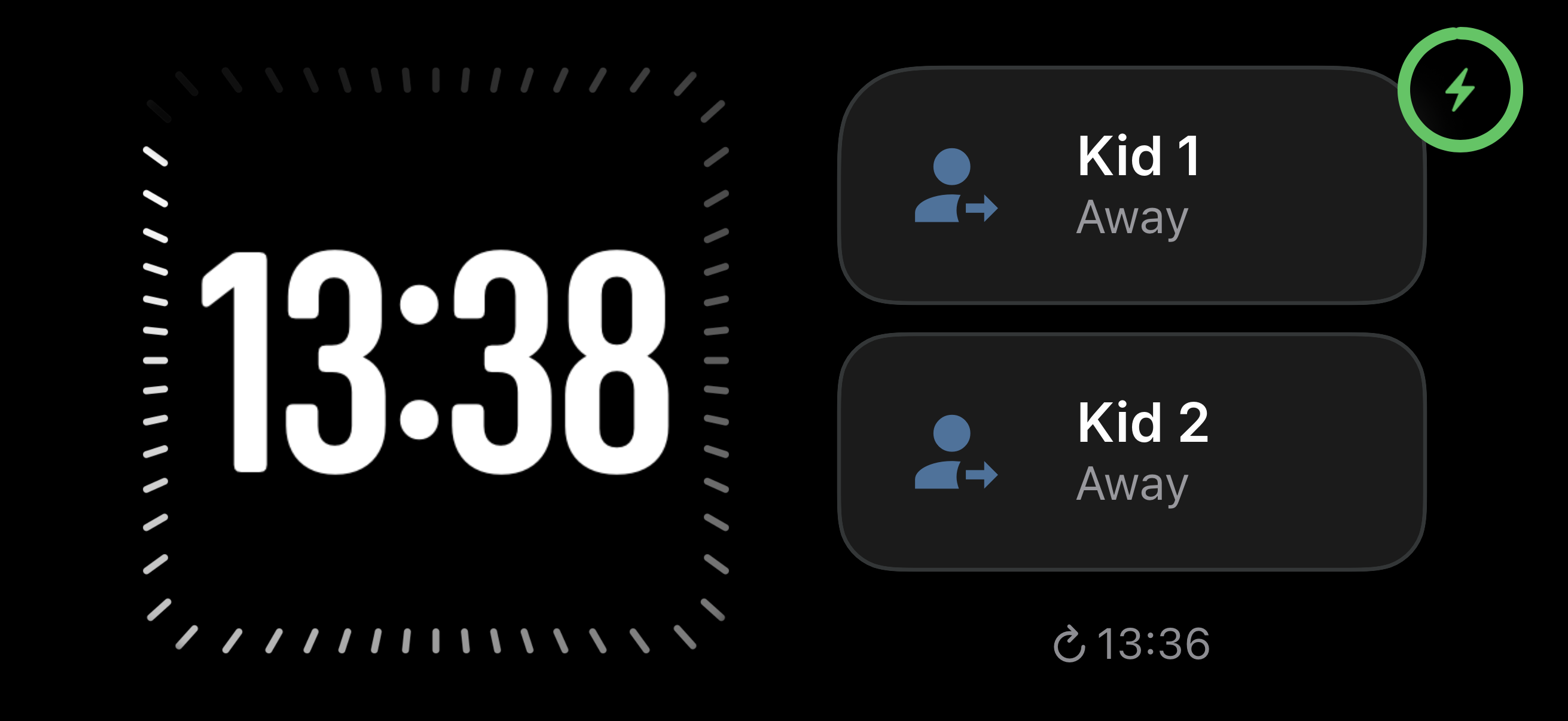
Scriptable widget permalink
In my search to have a custom widget I stumbled on Scriptable that allows you to script your own widget. I edited this example script to my needs, also mapping the HomeAssistant icons to SF Symbols:
//  Home Assistant Presence Widget for Scriptable
//
//  Based on Home Assistant Sensor Widget, Copyright 2023 @olahellgren
//  https://github.com/olahellgren/home-assistant-sensor-widget-scriptable
//  MIT License (see bottom of file)

// ===== Configuration =====

const hassUrl = "<hass base url>"
const hassToken = "<your long lived Bearer token>"

const people = [
  { name: "Kid 1", entity: "sensor.kid1_presence" },
  { name: "Kid 2",  entity: "sensor.kid2_presence" }
]

// Home Assistant icon -> SF Symbol
const iconSymbolMap = {
  "mdi:home-account": "house",
  "mdi:account-arrow-right": "house.slash"
}
const defaultSymbol = "house.fill"

// ===== Layout =====

const backgroundColor = new Color("#000000")
const textColor = new Color("#ffffff")
const nameFontSize = 16
const statusFontSize = 28
const iconSize = 50
const padding = 12

// ===== Widget =====

const states = await fetchAllStates()

const widget = new ListWidget()
widget.backgroundColor = backgroundColor
widget.setPadding(padding, padding, padding, padding)

const layout = widget.addStack()
layout.layoutVertically()

people.forEach((person, i) => {
  const sensor = states.find(s => s.entity_id === person.entity)
  if (!sensor) return
  if (i > 0) layout.addSpacer()   // spread rows over the full height
  addPersonRow(layout, person.name, sensor)
})

Script.setWidget(widget)
Script.complete()
widget.presentSmall()

// ===== Functions =====

function addPersonRow(parent, name, sensor) {
  const row = parent.addStack()
  row.layoutHorizontally()
  row.centerAlignContent()

  const sf = SFSymbol.named(iconSymbolMap[sensor.attributes.icon] || defaultSymbol)
  sf.applyFont(Font.systemFont(iconSize))
  const img = row.addImage(sf.image)
  img.imageSize = new Size(iconSize, iconSize)
  img.tintColor = textColor

  row.addSpacer(8)

  const textCol = row.addStack()
  textCol.layoutVertically()

  const nameText = textCol.addText(name)
  nameText.font = Font.semiboldRoundedSystemFont(nameFontSize)
  nameText.textColor = textColor
  nameText.lineLimit = 1

  const statusText = textCol.addText(String(sensor.state))
  statusText.font = Font.mediumRoundedSystemFont(statusFontSize)
  statusText.textColor = textColor
  statusText.lineLimit = 1
  statusText.minimumScaleFactor = 0.5
}

async function fetchAllStates() {
  const req = new Request(`${hassUrl}/api/states`)
  req.headers = {
    "Authorization": `Bearer ${hassToken}`,
    "Content-Type": "application/json"
  }
  const result = await req.loadJSON()
  if (!Array.isArray(result)) {
    throw new Error(`Home Assistant error: ${JSON.stringify(result)}`)
  }
  return result
}

//  The MIT License
//
//  Permission is hereby granted, free of charge, to any person obtaining a
//  copy of this software and associated documentation files (the "Software"),
//  to deal in the Software without restriction, including without limitation
//  the rights to use, copy, modify, merge, publish, distribute, sublicense,
//  and/or sell copies of the Software, and to permit persons to whom the
//  Software is furnished to do so, subject to the following conditions:
//
//  The above copyright notice and this permission notice shall be included in
//  all copies or substantial portions of the Software.
//
//  THE SOFTWARE IS PROVIDED "AS IS", WITHOUT WARRANTY OF ANY KIND, EXPRESS
//  OR IMPLIED, INCLUDING BUT NOT LIMITED TO THE WARRANTIES OF MERCHANTABILITY,
//  FITNESS FOR A PARTICULAR PURPOSE AND NONINFRINGEMENT. IN NO EVENT SHALL THE
//  AUTHORS OR COPYRIGHT HOLDERS BE LIABLE FOR ANY CLAIM, DAMAGES OR OTHER
//  LIABILITY, WHETHER IN AN ACTION OF CONTRACT, TORT OR OTHERWISE, ARISING
//  FROM, OUT OF OR IN CONNECTION WITH THE SOFTWARE OR THE USE OR OTHER
//  DEALINGS IN THE SOFTWARE.
To add it to your StandBy screen:
- Charge your phone on its side while it's locked, so StandBy turns on.
- Swipe to the widgets view (the two side-by-side stacks).
- Long-press a stack → + → Scriptable → Your newly made widget.
At night StandBy switches to its red night mode, which also tints the widget. It's dim enough not to keep you awake and still readable at a glance.
Make it update immediately permalink
iOS decides on its own when widgets refresh, which can be 15 minutes or more. The supposed fix is a small Home Assistant automation that tells my phone to refresh its widgets whenever the kid's presence changes:
alias: Refresh presence widget
triggers:
  - trigger: state
    entity_id: person.kid
actions:
  - action: notify.mobile_app_my_iphone
    data:
      message: update_widgets
update_widgets is a silent command, so no notification appears. I have found this is not really reliable, iOS still decides to update or not depending on how the wind blows. Testing did show that it usually updates within 15 minutes, which is fine.
Wrapping up permalink
The end result: my kid comes home, their phone joins the Wi-Fi (if it still has battery, lol), Home Assistant flips them to home, and the widget on my nightstand changes from Away to Home. No apps to install on their phone, no location sharing to set up, and no "are you home yet?" texts.
Ain't that grand!